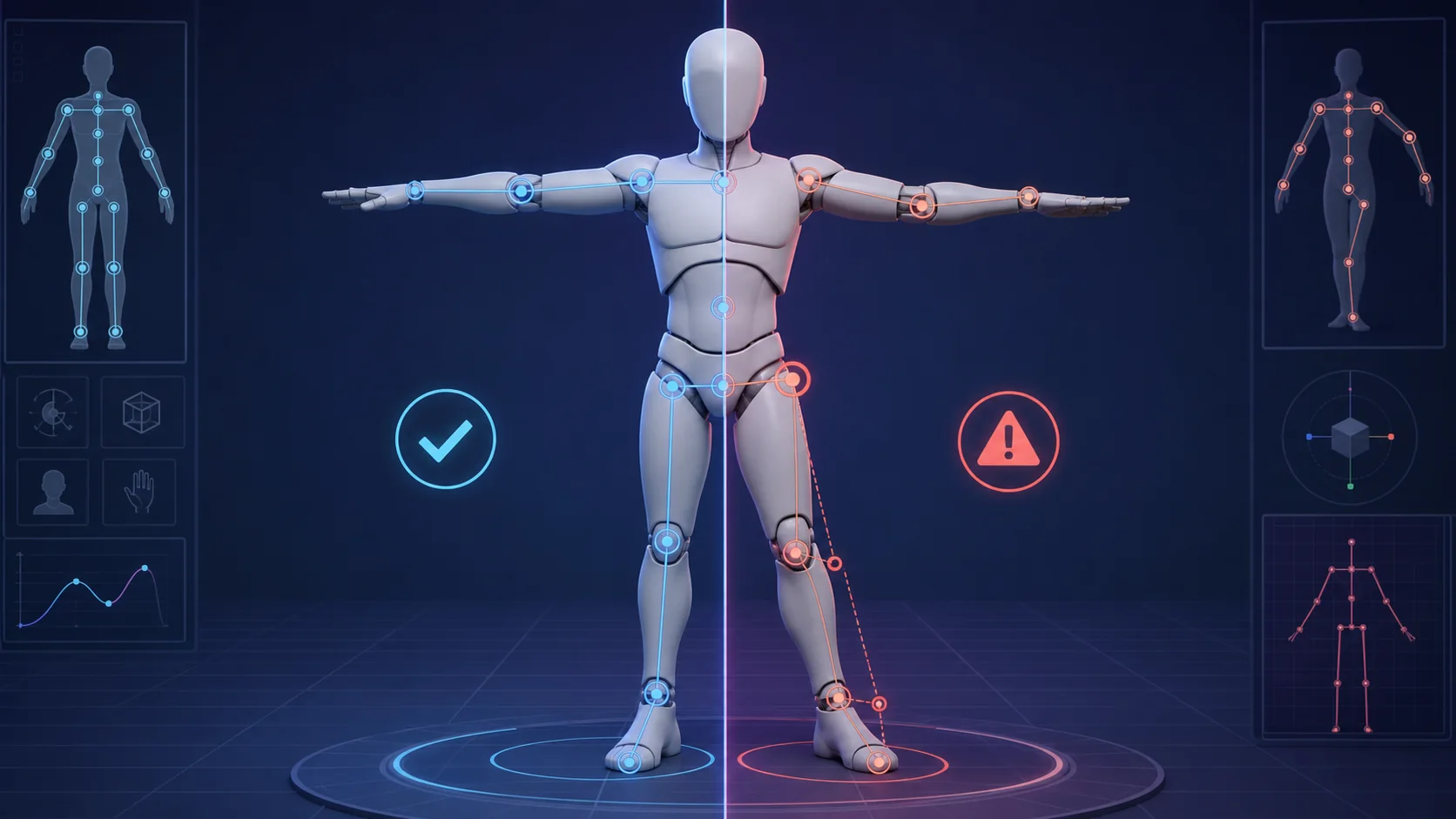
A Mixamo failure can happen before the character loads, while Mixamo detects joints, after the skeleton is generated, or only after the FBX reaches Blender. Identify that stage first. Changing export settings will not repair poor skin weights, and repainting weights will not fix a file that Mixamo cannot read.
Official Downloads and Help#
Mixamo runs in a browser and requires an Adobe account. Adobe may change processing messages and interface labels, so record the exact message and the stage at which it appears.
Start with the Symptom#
| What happens? | Go to |
|---|---|
| The file is rejected, processing never finishes, or the preview is empty | A. Upload failure |
| The character appears, but joint markers or skeleton generation fail | B. Rigging failure |
| The rig completes, but arms, knees, or clothing collapse | C. Bad deformation |
| The animation works on Mixamo but breaks or disappears in Blender | D. Blender import failure |
| The model is gray or textures are missing | E. Missing textures |
Before testing, save a separate Blender copy with -mixamo-test in the filename. Keep the original rigged project unchanged.
A. Upload Failure#
Build the smallest file that can reproduce the problem.
- Keep one character. Exclude cameras, lights, floors, reference planes, weapons, and extra characters.
- Put the feet near the ground plane and the body near the world origin.
- On an unrigged duplicate, use Ctrl+A > Rotation & Scale and confirm that Scale reads
1, 1, 1. If the test file is already rigged, do not apply transforms to only the mesh or only the armature. Export a duplicate without the old rig first. - Remove hidden duplicates, isolated geometry, and accidental internal faces.
- Export the selected character as FBX. If it still fails, test an unrigged copy as OBJ or OBJ/ZIP.
Adobe lists FBX, OBJ, and ZIP for custom-character uploads. An OBJ texture set must include the .obj, .mtl, and referenced images in the same ZIP.
If the Preview Is Empty or Tiny#
Return to Blender and check object scale, origin placement, and rotation. Exporting only the visible mesh also rules out an off-screen helper object that expands the scene bounds.
If Processing Stalls#
Retry with an unrigged, untextured mesh. If that succeeds, add the removed elements back separately. This test distinguishes geometry ingestion from texture packaging or existing-skeleton mapping; it does not prove which removed element is faulty.
B. Rigging Failure#
Mixamo's auto-rigger is intended for a recognizable humanoid: one head, torso, two arms, and two legs with visible elbows and knees. Quadrupeds, extra limbs, wings, or heavily obscured joints generally need another rigging method.
Prepare the Pose#
- Use a T-pose or relaxed A-pose.
- Leave space between the arms and torso.
- Keep the hands away from the thighs.
- Separate the legs and keep the spine upright.
- Remove or hide props that cover the chin, elbows, groin, or knees.
Place Mixamo's chin, wrist, elbow, knee, and groin markers at the joint centers visible in the silhouette. A clothing edge or painted detail may not match the actual joint.
Existing Skeleton Will Not Map#
Export a second test without the old armature or Armature modifiers. If the unrigged copy reaches marker placement, the mesh itself is readable. The remaining fault is in the rigged FBX export or skeleton mapping, not necessarily in the mesh. Keep the original file; Adobe supports rigged-character uploads as FBX and maps the uploaded skeleton automatically.
C. Bad Deformation#
First apply a slow walk or simple arm raise in Mixamo. Look at shoulders, elbows, wrists, hips, knees, and ankles.
If a joint bends around the wrong point, return to marker placement and correct that joint. If the joint position is reasonable but nearby vertices stretch or collapse, repair the skin weights in Blender:
- Import a With Skin FBX into a new Blender file.
- Bend one problem joint in Pose Mode.
- Select the mesh and enter Weight Paint.
- Remove influence from the wrong bone.
- Smooth the transition and normalize weights.
- Test a more extreme pose than the neutral stance.
Separate clothing may rig correctly, but loose layers and disconnected accessories often need their own weight cleanup. Downloading another animation does not change the generated skin weights.
D. Blender Import Failure#
Download FBX Binary and test it in an empty Blender file before adding retargeting tools or a control rig.
Animation Imports but Does Not Move#
Check these items in Blender:
- the imported armature is selected;
- an Action exists in the Dope Sheet or Action Editor;
- the scene frame range includes the Action;
- the mesh still has an Armature modifier pointing to the imported skeleton.
Character Is Rotated, Backward, or the Wrong Size#
Compare the clean import with the original scene before changing the skeleton. Axis and unit conversions depend on the Blender version, FBX settings, and target engine. Correct them on a duplicate and retest the full export-import round trip.
Mixamo Works, Retargeted Rig Breaks#
If the untouched FBX plays correctly, the auto-rigging stage has passed this test. Inspect bone mapping, rest pose, scale, and root-motion handling in the retargeting or control-rig step.
E. Missing Textures#
A gray character is usually separate from skeleton generation.
- For OBJ, ZIP the OBJ, MTL, and all referenced images together.
- For FBX, enable Embed Media or the exporter's equivalent embedded-texture option when creating the upload file.
- Open the downloaded FBX in a clean Blender file and inspect material image paths.
Mixamo can still generate a usable rig when the preview material is wrong. Verify rigging and material packaging separately.
Final Test#
The workflow has passed only when one basic animation:
- plays correctly in Mixamo;
- downloads with the expected skin and animation;
- plays in a clean Blender file;
- keeps the mesh aligned with the skeleton; and
- survives import into the intended engine or application.
If a step fails, return to that branch. This prevents a Blender retargeting problem from being mistaken for a Mixamo upload failure.