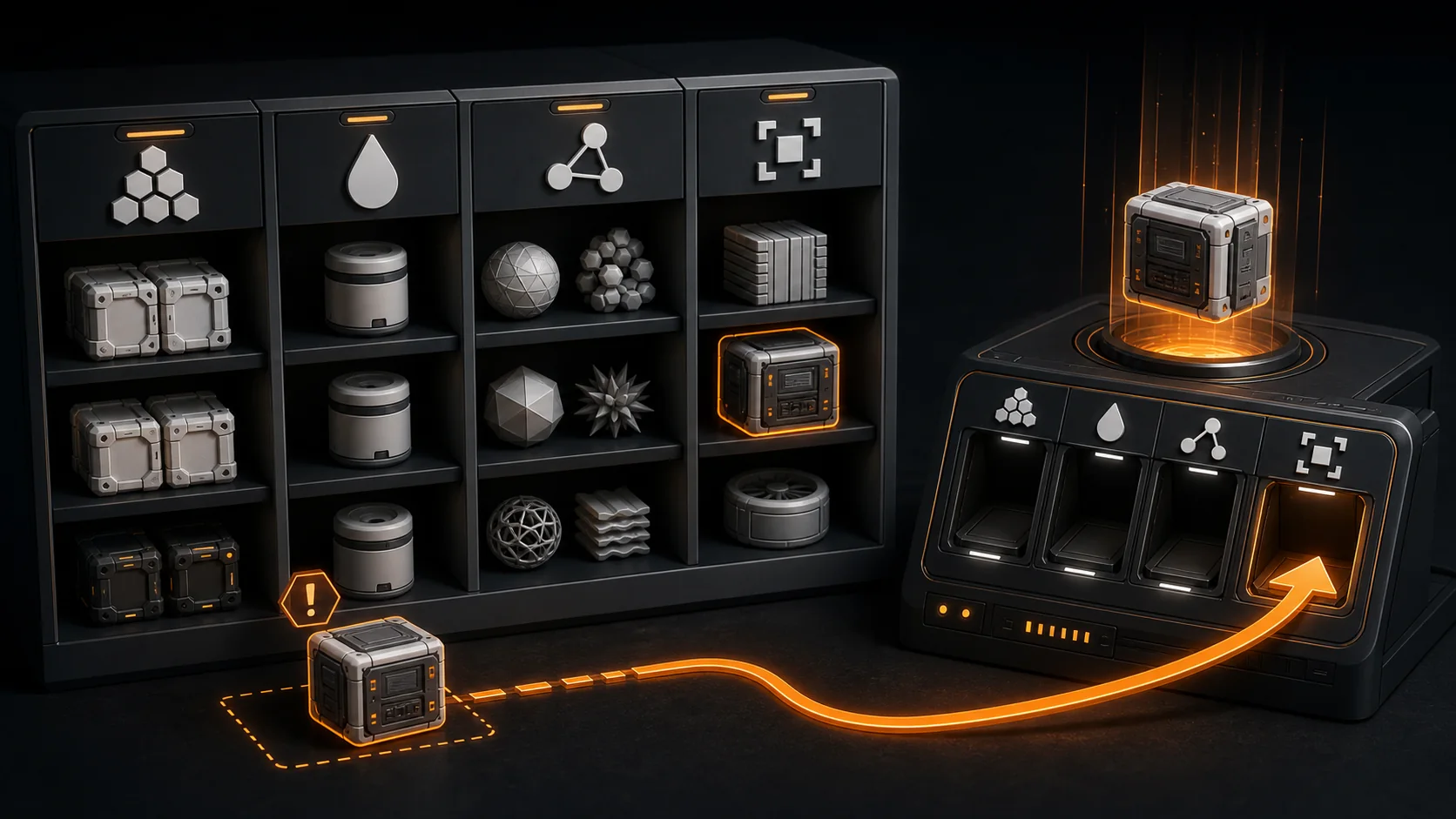
ComfyUI does not treat every .safetensors file as a checkpoint. A LoRA in the checkpoint folder, a VAE in the LoRA folder, or an SDXL component used with a Flux workflow can produce an empty list or a loading error. Identify the model type before moving files.
Downloads and Official References#
- Download ComfyUI
- ComfyUI model concepts and folders
- ComfyUI model troubleshooting
- ComfyUI Windows Desktop and extra model paths
Download models only from sources you trust. Check the model license before commercial use.
Match the Loader to the Folder#
Common default locations include:
| Model type | Common folder |
|---|---|
| Checkpoint | ComfyUI/models/checkpoints/ |
| VAE | ComfyUI/models/vae/ |
| LoRA | ComfyUI/models/loras/ |
| ControlNet | ComfyUI/models/controlnet/ |
| Upscale model | ComfyUI/models/upscale_models/ |
| Embedding | ComfyUI/models/embeddings/ |
Installation packages can wrap the ComfyUI folder differently. In ComfyUI Desktop, use the Help menu option that opens the actual model folder instead of guessing the path.
Fix an Empty Loader List#
- Confirm that the file finished downloading.
- Check that it is not still inside a ZIP archive.
- Move it to the folder for its model type.
- Press
rto refresh node definitions. - Refresh the browser.
- Restart ComfyUI if the list remains empty.
- Select the model again in the loader node.
If the file exists in two installations, make sure you are editing the folder used by the running process.
Fix “Value Not in List”#
This error often appears when a workflow stores a filename that does not exist in your installation.
- Open the affected loader node.
- Choose an installed compatible model from the list.
- If the workflow requires a specific model, download that exact model from the author’s link.
- Save the repaired workflow under a new name.
Renaming a different model to the missing filename does not make it compatible.
Use a Shared Model Folder#
If several interfaces share the same models, configure extra_model_paths.yaml using the current ComfyUI documentation.
Check:
- YAML indentation;
- absolute folder paths;
- the correct category names;
- file permissions;
- whether the running ComfyUI instance loads that configuration;
- restart after editing.
Do not point every category to one large unsorted directory. Separate checkpoints, VAEs, LoRAs, and ControlNet models so loaders can classify them correctly.
Fix Architecture Mismatch#
The model can appear in the list and still fail during loading or VAE decoding. Keep components in the same architecture family.
Examples of incompatible mixes include:
- an SD 1.5 ControlNet with an SDXL checkpoint;
- a Flux VAE or autoencoder with an SD checkpoint;
- a LoRA trained for another base architecture;
- a text encoder required by one workflow but omitted;
- a UNet-only file loaded as a full checkpoint.
Start from the model author’s example workflow. Confirm the required checkpoint or diffusion model, text encoder, VAE, and additional components before adding custom nodes.
Fix a Corrupted Model File#
An interrupted download can produce errors such as a deserialization or header failure.
- Compare the file size or checksum with the source when available.
- Confirm that the disk has enough free space.
- Delete only the confirmed corrupted copy.
- Download it again from the original source.
- Test the model in a minimal workflow.
Do not disable safe loading checks to force an unknown file to open.
When a Model Loads Too Slowly or Runs Out of Memory#
Model discovery and model execution are different problems. If the loader finds the file but the process runs out of memory:
- use a smaller or quantized model supported by the workflow;
- lower image resolution and batch size;
- close other GPU applications;
- use the documented low-VRAM options;
- confirm that the chosen model matches the available VRAM.
Moving the file to another folder will not reduce memory use.
Verify the Fix#
- Restart ComfyUI.
- Confirm that the model appears in the correct loader.
- Load a minimal official or author-provided workflow.
- Generate one low-resolution image with batch size
1. - Confirm that the console has no architecture, missing-file, or deserialization error.
- Save a copy of the working workflow.
The model is correctly installed when it is detected after restart and completes a minimal generation with compatible components.