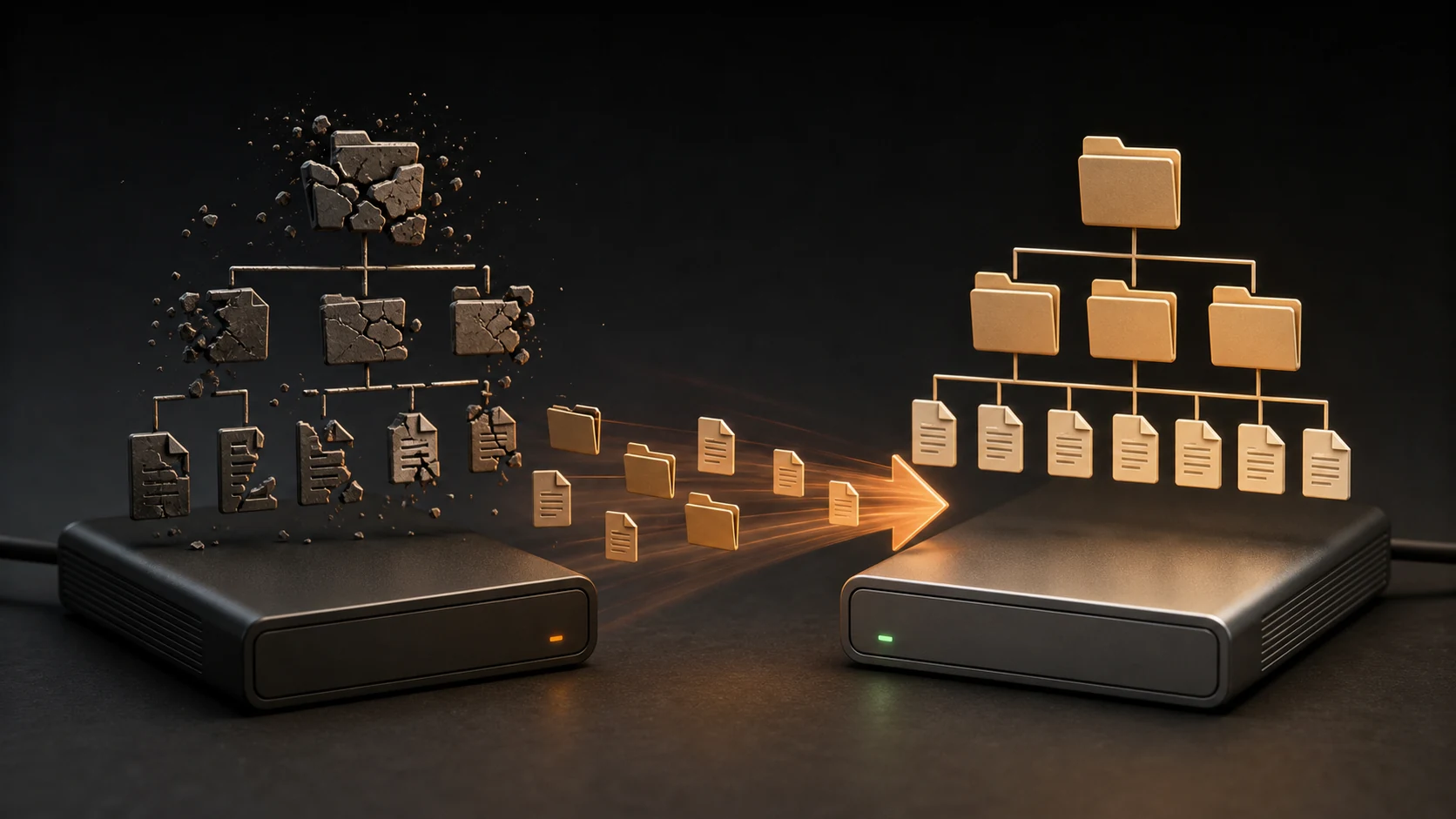
RAW means Windows cannot mount the volume as a recognized file system. It does not tell you whether the cause is a damaged file system, lost partition information, faulty cable, enclosure problem, or failing disk.
Official Recovery Tools#
- TestDisk and PhotoRec official download
- R-Studio Data Recovery official site
- Windows Disk Management
- Windows File Recovery
R-Studio can scan and preview files in demo mode. PhotoRec is free and recovers by file signature. TestDisk can inspect partition structures and list files.
Do Not Do These Things First#
- Do not accept the Windows format prompt.
- Do not create a new volume.
- Do not initialize a drive that previously contained files.
- Do not run
chkdskagainst a RAW volume as the first recovery action. - Do not save recovered files to the RAW drive.
- Do not repeatedly reconnect a drive that clicks or drops offline.
File-system repair changes metadata. Recover or image important data before attempting a write-based repair.
Check Hardware Stability#
- Replace the USB cable.
- Use the original power adapter.
- Connect directly instead of through a hub.
- Check Disk Management for the correct capacity.
- Test one known-good enclosure when appropriate.
- Stop if the drive disconnects or makes unusual sounds.
If the data is irreplaceable and the disk is unstable, use a professional recovery service.
Decide Between an Image and a Direct Scan#
If the drive is stable, reports the correct capacity, and reads continuously without errors, a direct read-only scan is reasonable. If it is slowing down, developing read errors, or disconnecting, do not start a long full scan. Create an image first with a recovery tool that supports imaging, or stop and use a professional service.
R-Studio can create a byte-for-byte image from the selected physical disk. Save an uncompressed raw image to a healthy destination with free space at least equal to the source capacity, then scan the image. Stop if the source disconnects, makes unusual sounds, or the imaging log shows rapidly increasing read failures.
Scan Without Writing to the Source#
For a stable drive or completed image, open R-Studio or TestDisk and select the correct source by model and capacity. Scanning, listing, previewing, and copying can be performed without writing partition or boot-sector changes.
With R-Studio:
- Select the physical disk.
- Run a scan without writing changes.
- Open recognized candidate partitions.
- Preview several important files.
- Recover selected files to another disk.
With TestDisk:
- Select the disk by capacity.
- Choose the detected partition-table type.
- Run Analyse and Quick Search.
- Press
pto list files on a candidate partition andqto return. - Copy files to another disk before using Write.
Use PhotoRec When the File System Cannot Be Reconstructed#
PhotoRec ignores much of the damaged file-system structure and searches for file signatures. This can recover photos, videos, documents, and archives, but original filenames and folders may be lost.
Select only the required file types and save the output to a healthy destination with enough free space.
Format Only After Recovery#
After critical files have been recovered and verified:
- Keep two copies of the recovered data.
- Replace the cable or enclosure if it caused the problem.
- Delete and recreate the volume only when the hardware is trusted.
- Perform a full validation before returning the drive to use.
A successfully formatted drive is not proof that its hardware is reliable.
Open the Recovered Files#
Open documents, inspect full-resolution images, play videos through the ending, and test archive integrity. Keep the source unchanged until these checks pass.