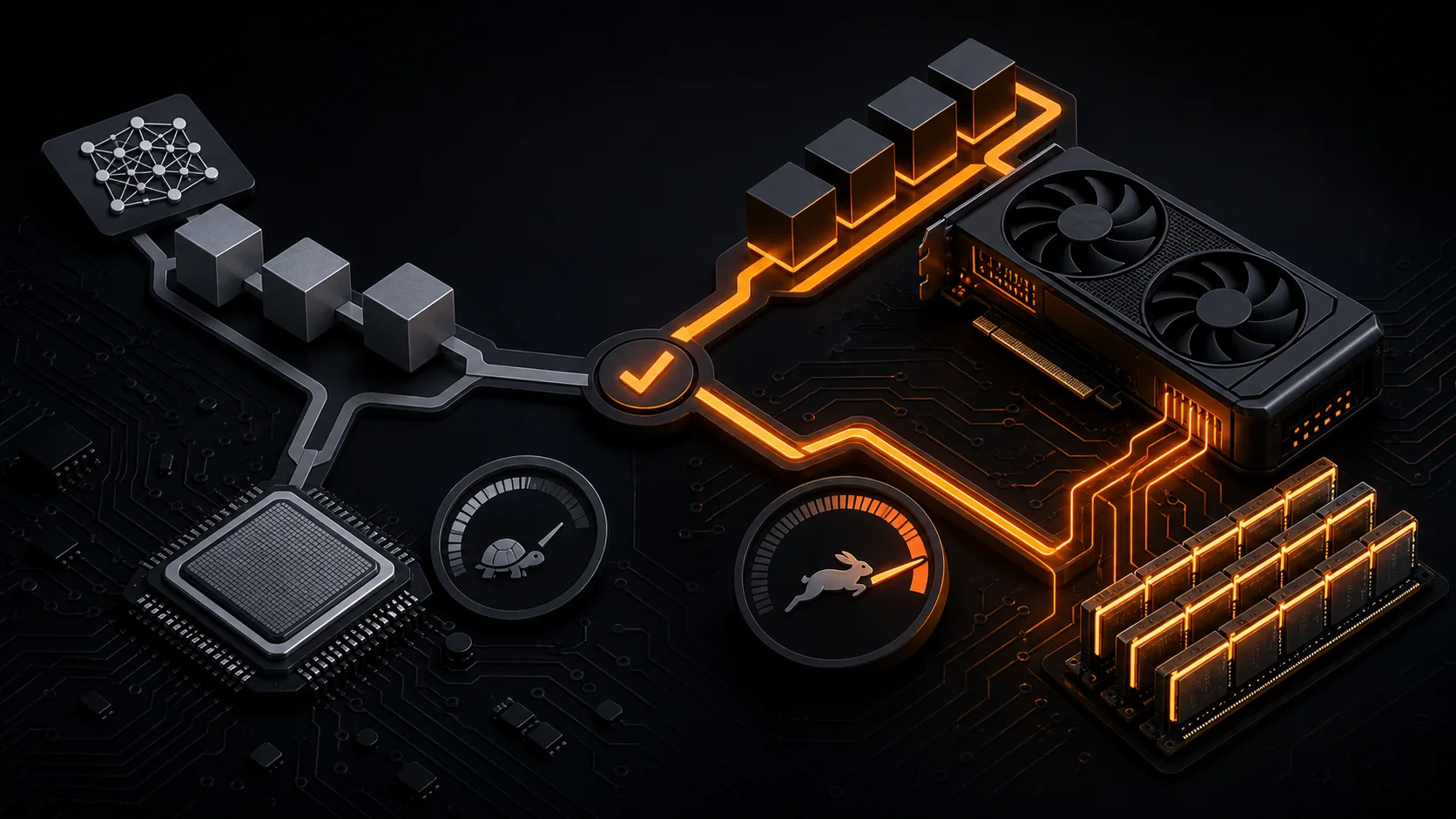
Low GPU utilization does not automatically mean Ollama is broken. The model may be too large for VRAM, only some layers may be offloaded, the GPU may be waiting between short requests, or the running Ollama service may not see the GPU backend. Prove the execution path before reinstalling anything.
Downloads and Official References#
Confirm What Ollama Loaded#
Run a model, keep it loaded, and open another terminal:
ollama psCheck the processor column and the model size. Then monitor the GPU while generating a long answer.
For NVIDIA:
nvidia-smiOn Windows, Task Manager may show a quiet 3D graph while a compute engine is active. Select a CUDA or compute graph, and check dedicated GPU memory.
Test a Model That Fits#
A large model can spill into system RAM and run partly or mostly on CPU. Test a small model before diagnosing the driver.
- Stop the large model.
- Run a small model that easily fits in available VRAM.
- Ask for a long response.
- Watch
ollama ps, GPU memory, and token speed.
- Small model uses the GPU: the original model, quantization, or context size is the problem.
- Small model also uses CPU: continue with backend and service checks.
Model file size is not the only VRAM requirement. The context cache and runtime buffers also use memory.
Check Version, Binary, and Running Service#
ollama --version
where.exe ollama
On Linux:
which ollama
systemctl status ollama
systemctl cat ollama
Make sure the shell command and the background service point to the intended installation. A terminal can have the right environment while an older service keeps running from another path.
Restart Ollama after updating drivers or packages. On Windows, quit the tray application before starting a diagnostic instance.
Read the Logs#
On Windows, recent server logs are under:
%LOCALAPPDATA%\OllamaOn Linux:
journalctl -u ollama -b --no-pagerSearch for cuda, gpu, nvidia, rocm, vulkan, runner, discovery, offload, and fallback. Enable Ollama debug logging according to the official troubleshooting page when the normal log is not enough.
The log is stronger evidence than a momentary utilization percentage.
NVIDIA Checks#
- Confirm
nvidia-smiworks outside Ollama. - Install a current driver supported by the GPU and operating system.
- Reboot after the driver update.
- Confirm that the Ollama service can access the GPU.
- In Docker, confirm that a test container can run
nvidia-smi.
For Docker:
docker run --rm --gpus all ubuntu nvidia-smiIf that command fails, fix the NVIDIA container runtime before changing Ollama.
AMD Checks#
AMD support depends on the operating system, GPU family, ROCm support, permissions, and optional Vulkan support. Compare the exact GPU with Ollama’s current hardware table.
On Linux, the Ollama user may need access to the video and render groups and devices such as /dev/kfd and /dev/dri. Check the official troubleshooting instructions before changing permissions.
Do not copy an HSA_OVERRIDE_GFX_VERSION value from another GPU without understanding the compatibility risk. It is an override, not proof of support.
Multi-GPU and GPU Selection#
Ollama supports environment variables for choosing visible devices. Use stable GPU identifiers when the documentation recommends them. Confirm the environment is set for the process that runs the server, not only for an unrelated terminal.
After changing a service environment:
- reload the service configuration;
- restart Ollama;
- run the small-model test again;
- inspect the new log.
Verify the Fix#
The diagnosis is complete when:
ollama psreports GPU or mixed processing as expected;- the Ollama process holds meaningful dedicated GPU memory;
- logs show the intended backend and offloaded layers;
- a small model generates faster than the CPU-only path;
- the result persists after restarting Ollama.
If only a large model falls back, choose a smaller quantization, reduce context size, or use a model that fits the available VRAM. Reinstalling Ollama will not create more GPU memory.