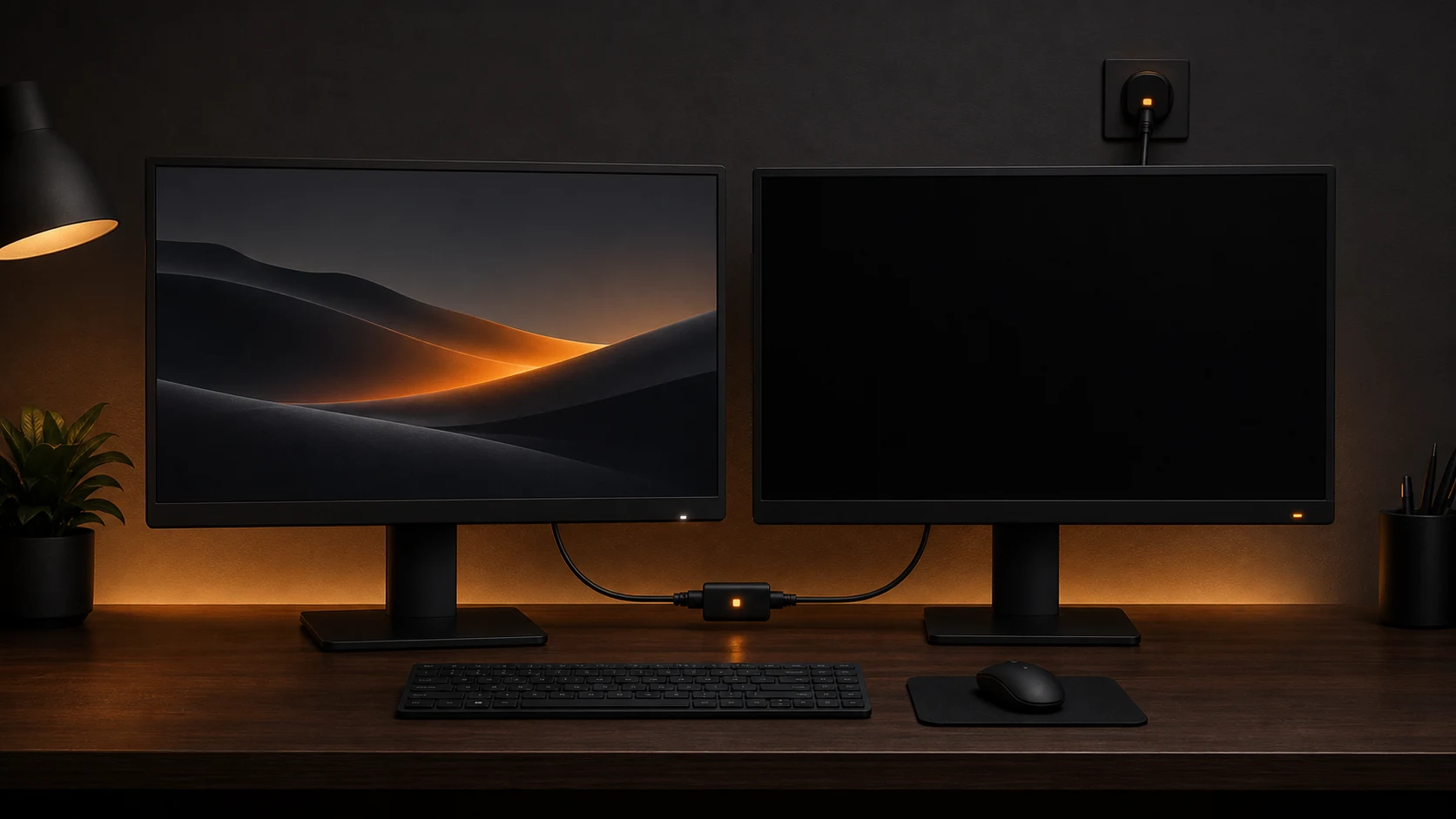
The monitor worked before sleep, so start with the power transition. Record whether the failure follows screen-off, sleep, hibernation, lid-close, restart, or reconnecting a dock. Then determine whether Windows lost the display or the monitor lost the video signal.
Official Links#
- Troubleshoot external monitor connections in Windows
- Use multiple monitors in Windows
- Update drivers through Windows
For NVIDIA, AMD, or Intel graphics packages, use the GPU manufacturer or computer maker’s official support page.
Check What the Monitor Reports#
| Monitor message | Likely layer |
|---|---|
| No signal | Cable, input selection, dock, port, or GPU output |
| Unsupported mode | Resolution or refresh rate |
| Black screen with backlight | Display mode, driver, or application |
| Monitor does not power on | Power cable, adapter, outlet, or monitor |
| Windows detects it but nothing displays | Extend mode, arrangement, resolution, or refresh rate |
Use the monitor’s physical menu to select the exact HDMI, DisplayPort, or USB-C input in use.
Wake the Display Stack#
Try the least disruptive actions first:
- Press
Windows + P. - Select Extend.
- Press
Windows + Ctrl + Shift + Bto reset the graphics driver. - Turn the monitor off and on.
- Disconnect and reconnect the display cable.
- Open Settings > System > Display > Multiple displays.
- Select Detect.
The keyboard reset may briefly blank the screens and play a sound.
Bypass the Dock or Adapter#
USB-C docks and adapters add another video and power layer.
- Connect the monitor directly to the computer if a direct port is available.
- Test one monitor at a time.
- Disconnect other USB devices from the dock.
- Connect the dock’s power adapter.
- Replace the cable with one rated for the required resolution and refresh rate.
- Test another port on the monitor and computer.
If the direct connection works, update the dock firmware and driver from the dock or computer manufacturer.
Check Display Mode and Refresh Rate#
If Windows detects the monitor:
- Open Settings > System > Display.
- Select the missing monitor in the diagram.
- Choose Extend desktop to this display.
- Open Advanced display.
- Test a conservative supported mode such as 60 Hz at a lower resolution.
- Restore the monitor’s native resolution and desired refresh rate only after the connection wakes reliably.
High refresh rates and resolutions require enough bandwidth. A cable or dock that works at 1080p may fail at 4K or at a high refresh rate.
Repair the Graphics Driver#
If the problem began after an update:
- Open Device Manager.
- Expand Display adapters.
- Open the GPU properties.
- Record the provider, version, and date.
- Use Roll Back Driver when it is available and the previous driver was stable.
- Otherwise install the current approved driver from the computer or GPU manufacturer.
- Restart Windows.
Laptop makers may customize graphics and USB-C behavior. Prefer their package when a generic GPU package causes dock or sleep problems.
Check Sleep and Power Behavior#
Install one documented, model-specific update at a time from an official source. Start with an update whose release notes mention display wake, graphics, USB-C, or the dock. Test the same sleep transition after each change.
Do not change many power-plan settings at once. Record one change, reproduce sleep, and test wake behavior.
Repeat the Same Wake Test#
- Confirm both monitors in Display settings.
- Play video on the second monitor.
- Put the computer to sleep for several minutes.
- Wake it and confirm the same arrangement.
- Restart Windows and test again.
- Repeat with the dock and all normal USB devices connected.