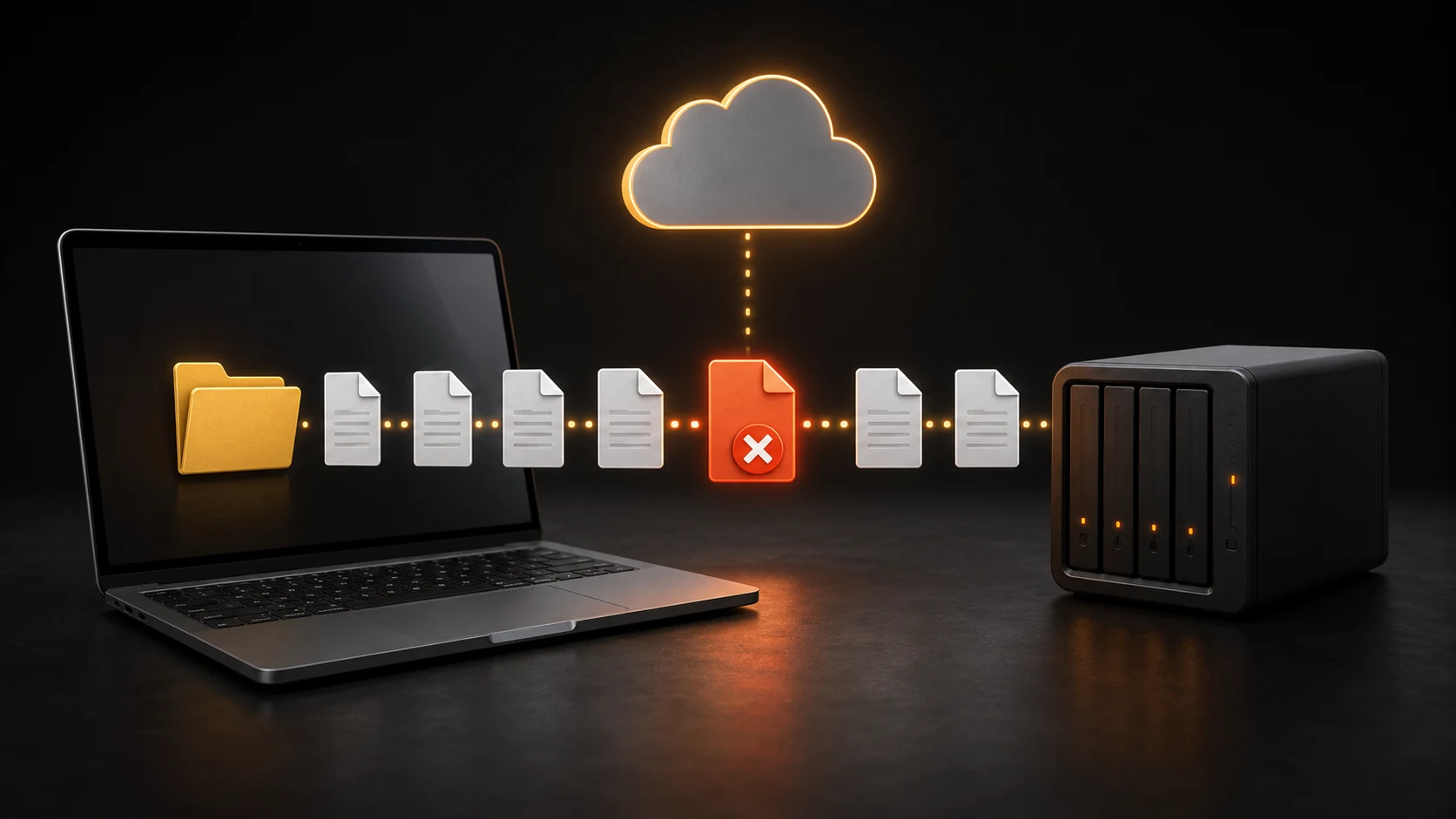
Do not unlink the account before checking whether local files still have unsynced changes. First confirm that OneDrive is running, the service is available, and storage is not full.
Official Links#
- Fix OneDrive sync problems
- Fix OneDrive stuck on Processing changes
- Pause and resume OneDrive sync
- Reset OneDrive
- OneDrive service status
- OneDrive sync restrictions
- Download OneDrive
Limits and filename rules can change. Use Microsoft’s current restriction page rather than an old list copied into a forum.
Confirm the Scope#
Select the OneDrive cloud icon in the notification area.
| Status | Check first |
|---|---|
| Processing changes | Recent large folders, shortcuts, and locked files |
| Paused | Resume syncing |
| Account full | Free storage or change the plan |
| Not signed in | Account credentials |
| Red X on one file | Filename, path, permissions, or file lock |
| No cloud icon | Start OneDrive |
Open OneDrive on the web and confirm that the account itself is accessible.
Find the Blocking File#
- Select the cloud icon.
- Open View sync problems when available.
- Pause syncing for two hours, wait a moment, then resume it.
- Sort the OneDrive folder by Date modified.
- Look for a recently added large folder, a
.tmpfile, a hidden file, or a file still open in another application. - Close applications that may hold the file open.
- Follow the current Microsoft restrictions page when OneDrive displays a filename or path error.
- Move one confirmed suspect item outside OneDrive and watch the status.
Do not delete a local file unless the web copy and any required version are confirmed.
Check Storage and Shortcuts#
OneDrive cannot upload new files when the account is full. Check storage on the web and free space on the local system drive.
Shared-folder shortcuts can also create unexpected sync activity. Review My files on OneDrive.com and use Remove shortcut only for a shortcut you no longer need. Never choose Delete for this test because deleting a shared folder can affect other people’s files.
Restart OneDrive#
- Select the cloud icon.
- Open Help & Settings.
- Quit OneDrive.
- Open it again from the Start menu.
- Wait for the initial scan.
If the icon is absent, press Windows + R and run:
%localappdata%\Microsoft\OneDrive\OneDrive.exeReset OneDrive#
Use a reset only after recording the account and folder location. A reset rebuilds the sync connection but should not delete cloud files.
Press Windows + R and run:
%localappdata%\Microsoft\OneDrive\OneDrive.exe /resetThen start OneDrive from the Start menu if it does not reopen. Confirm the command against Microsoft’s current support instructions if the installation uses a different path.
Unlink and Relink Last#
Before unlinking:
- Copy unsynced critical files to a folder outside OneDrive.
- Confirm cloud files on OneDrive.com.
- Record the local OneDrive folder.
- Confirm the correct personal or work account.
After relinking, choose the intended folder and let OneDrive compare files. Do not create several similarly named OneDrive folders without checking which one is active.
Confirm Sync in Both Directions#
- Create a small text file in the OneDrive folder.
- Confirm the green check mark.
- Open OneDrive.com and find the file.
- Edit it on the web.
- Confirm the edit returns to the computer.