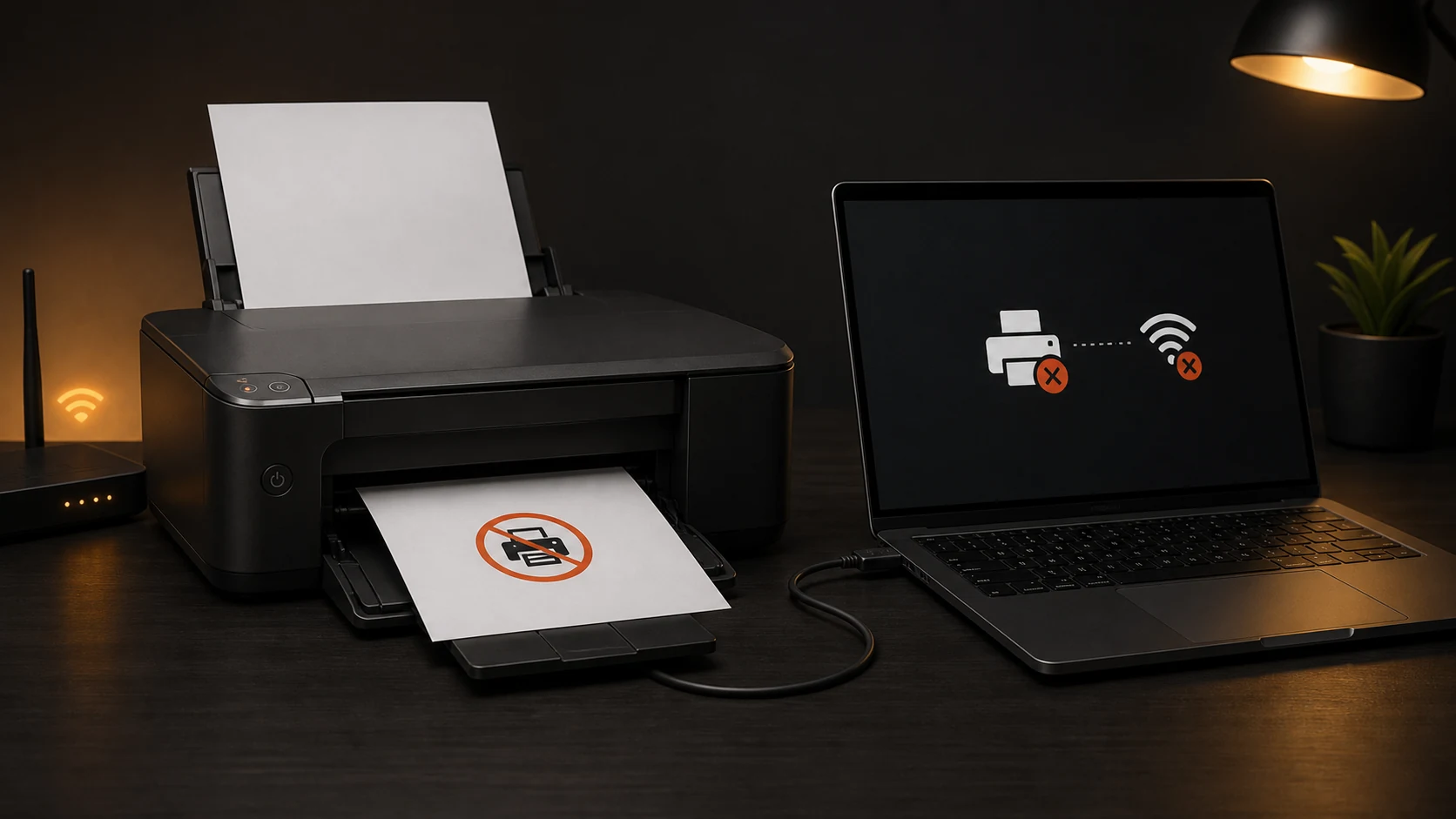
Check whether the printer itself is connected before reinstalling it. A printer can be powered on but connected to a different Wi-Fi network.
Official Links#
- Troubleshoot an offline printer in Windows
- Add or install a printer in Windows
- Install printer drivers in Windows
For firmware and model-specific software, use the printer manufacturer’s official support page.
Check the Printer#
- Confirm there is no paper, cover, ink, toner, or hardware error on its display.
- Restart the printer.
- Print a network or status page from the printer menu when available.
- Confirm the printer and computer are on the same network.
- For USB, replace the cable and try another port.
Guest Wi-Fi can isolate devices even when the network names look similar.
Before changing the queue or driver, open the Get Help app and run the printer troubleshooter. Note any setting it changes.
Clear the Print Queue#
Open Settings > Bluetooth & devices > Printers & scanners, select the printer, then open the print queue. Use the queue’s menu or ellipsis and select Cancel all when every pending job can be discarded. To preserve another user’s job, cancel only the confirmed stuck item.
Wait for cancellation to finish before sending a one-page test. A damaged job can keep later jobs behind it.
Check Offline and Default-Printer Settings#
Set the intended printer as default for the test. Some Windows 11 builds expose Pause Printing or Use Printer Offline in the classic queue menu; if those controls appear, make sure they are not selected. Do not search for them when the current queue UI does not show them.
Windows can manage the default printer automatically. If jobs keep going to another device, turn off automatic management temporarily and choose the printer yourself.
Restart the Print Spooler#
- Press
Windows + R. - Enter
services.msc. - Find Print Spooler.
- Select Restart.
- Reopen the queue.
If the spooler stops again, a driver or queued job may be involved. Record the error before deleting files from the spool folder.
If Cancel all and a spooler restart still leave jobs in the queue:
- Stop Print Spooler in Services.
- Open
C:\Windows\System32\spool\PRINTERS. - Delete only the queued spool files inside that folder.
- Start Print Spooler again.
- Send one test page.
This removes all queued print jobs on the computer, including jobs from other applications.
Remove and Add the Printer#
Only remove the device after noting its model, connection type, and IP address.
- Remove it from Printers & scanners.
- Restart Windows and the printer.
- Select Add device.
- If automatic discovery fails, add it manually by IP address when the printer has a stable network address.
- Print a Windows test page.
On an ARM-based Windows device, follow Microsoft’s current installation guidance and the printer maker’s compatibility information.
Install the Correct Driver#
Windows may use a basic class driver. Install the current model-specific package when finishing, scanning, duplex, or paper controls are missing. Match the exact model and Windows architecture.
Avoid generic driver-download websites. They can provide outdated or modified installers.
Print After Restarting Both Devices#
- Print a Windows test page.
- Print a one-page document from another application.
- Restart the printer and computer.
- Confirm the printer remains online.
- If it uses Wi-Fi, reserve its address in the router’s DHCP settings or use the manufacturer’s documented static-address method.